Record, transcribe, and summarize meetings
Step 1: Open the Meetings feature
In Scribewave, go to the Meetings section where you can invite the bot by pasting a meeting link or by scheduling it through your calendar.
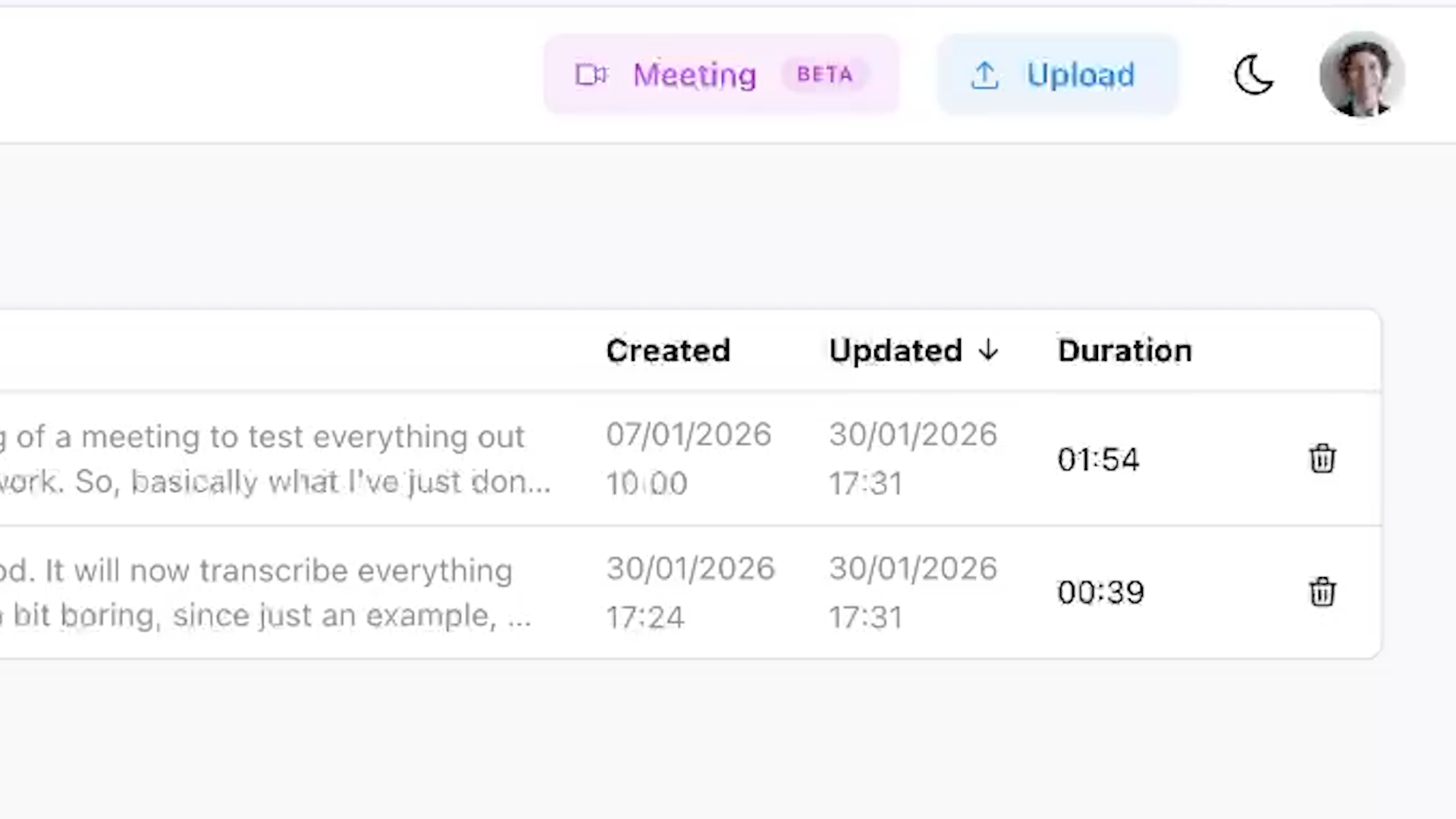 Step 1: Open the Meetings feature
Step 2: Copy your meeting link
Start a Teams, Google Meet, or Zoom call and copy the invite link from your meeting platform.
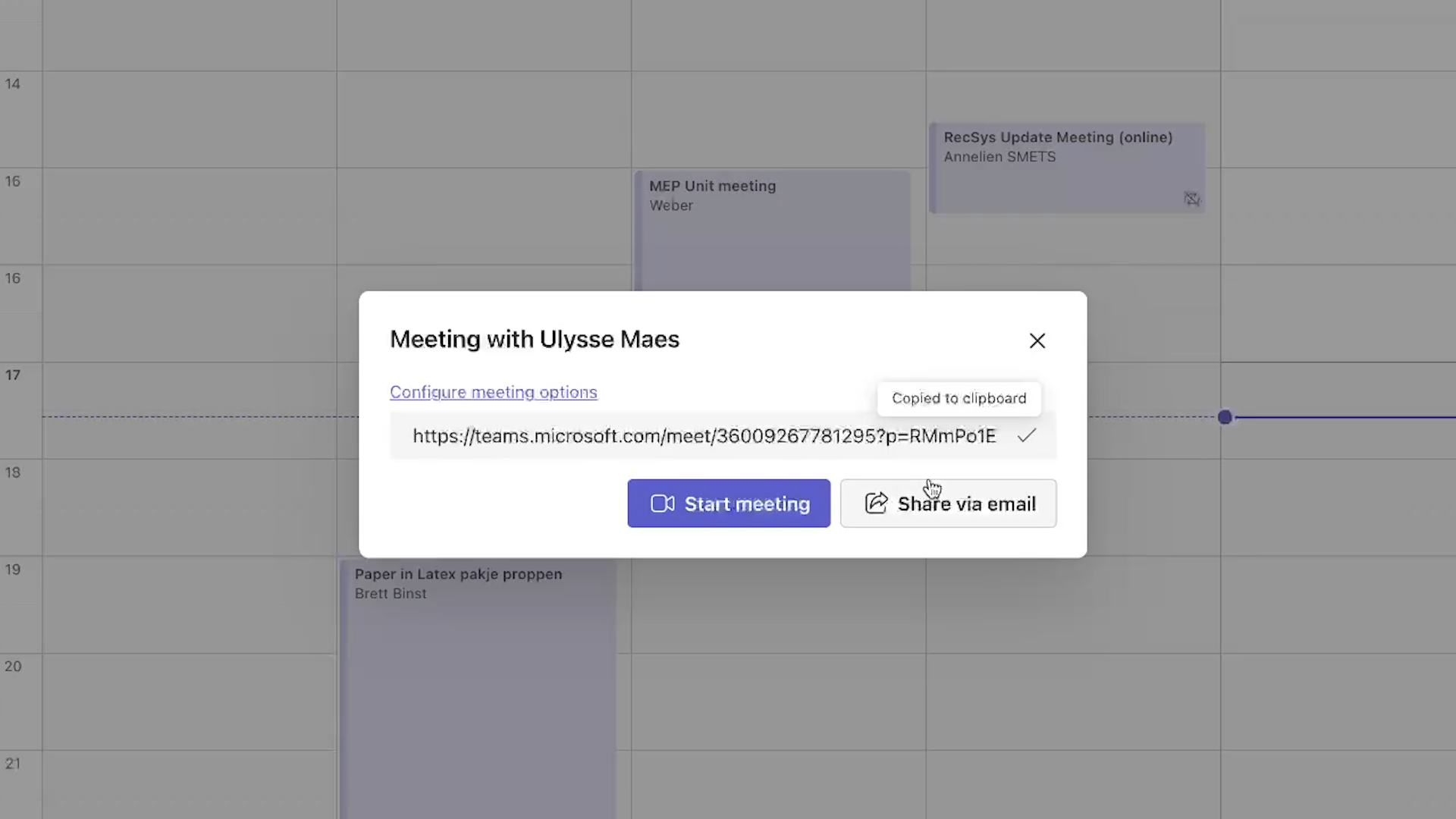 Step 2: Copy your meeting link
Step 3: Paste the link and record
Click the meeting button in Scribewave, paste the link, and select “Record meeting” to invite the Scribewave bot.
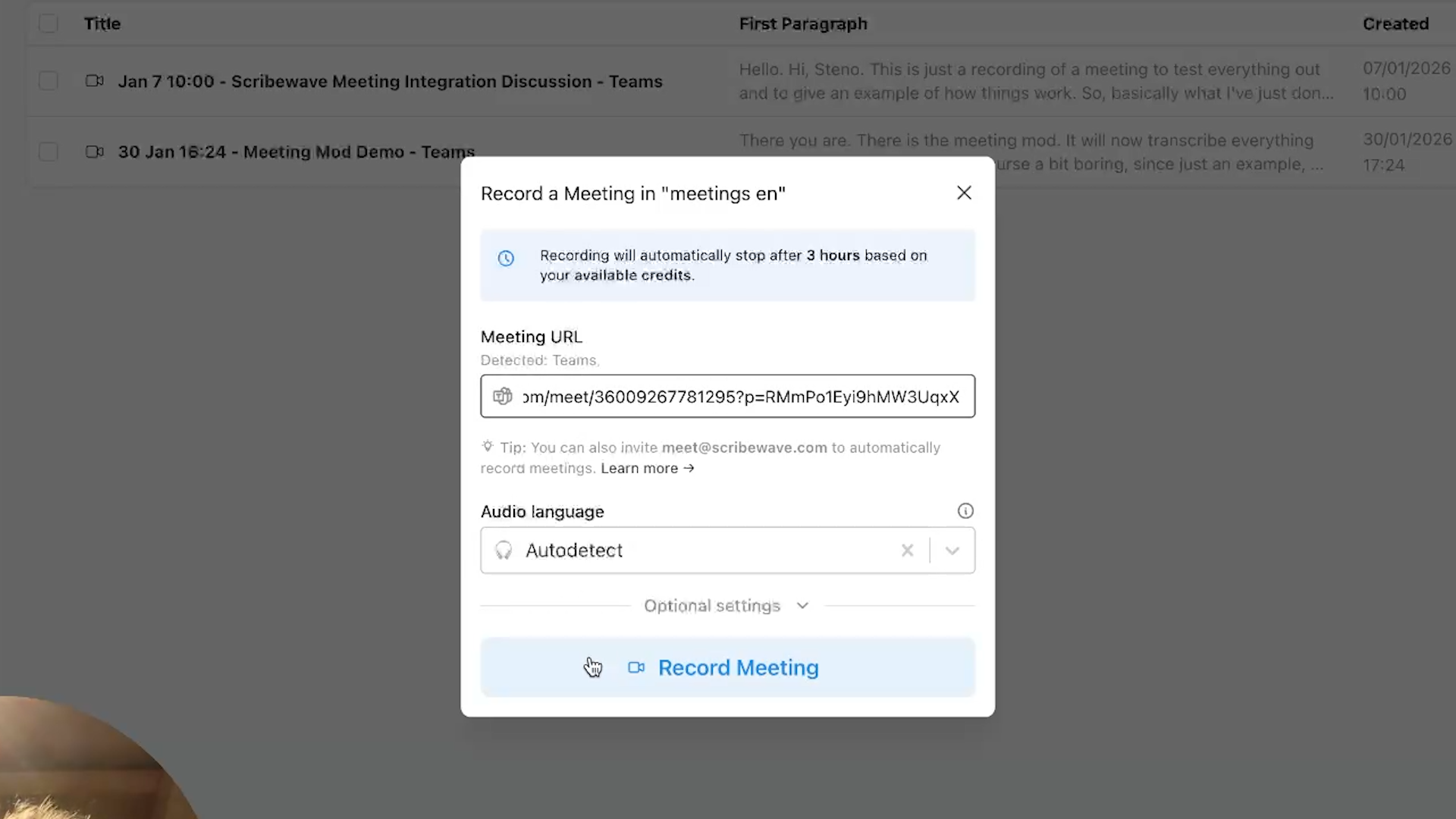 Step 3: Paste the link and record
Step 4: Let the bot join and label speakers
The bot joins the call and records everything. When multiple people speak, Scribewave automatically labels speakers so you can see who said what.
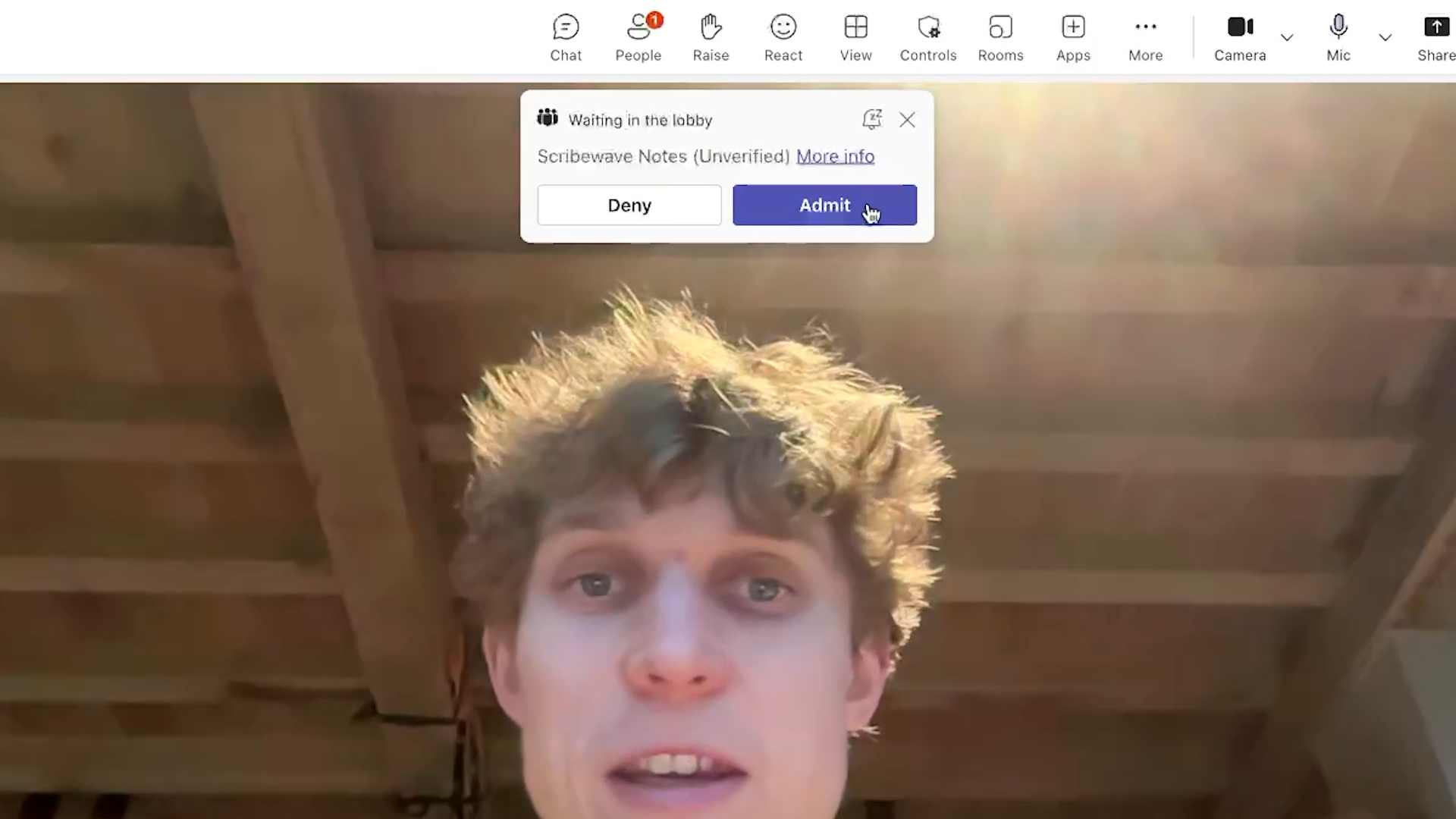 Step 4: Let the bot join and label speakers
Step 5: Review transcript and summary
After the call ends, refresh the page to view the recording, transcript, and summary. You can edit the summary and download both the summary and transcript as Word files.
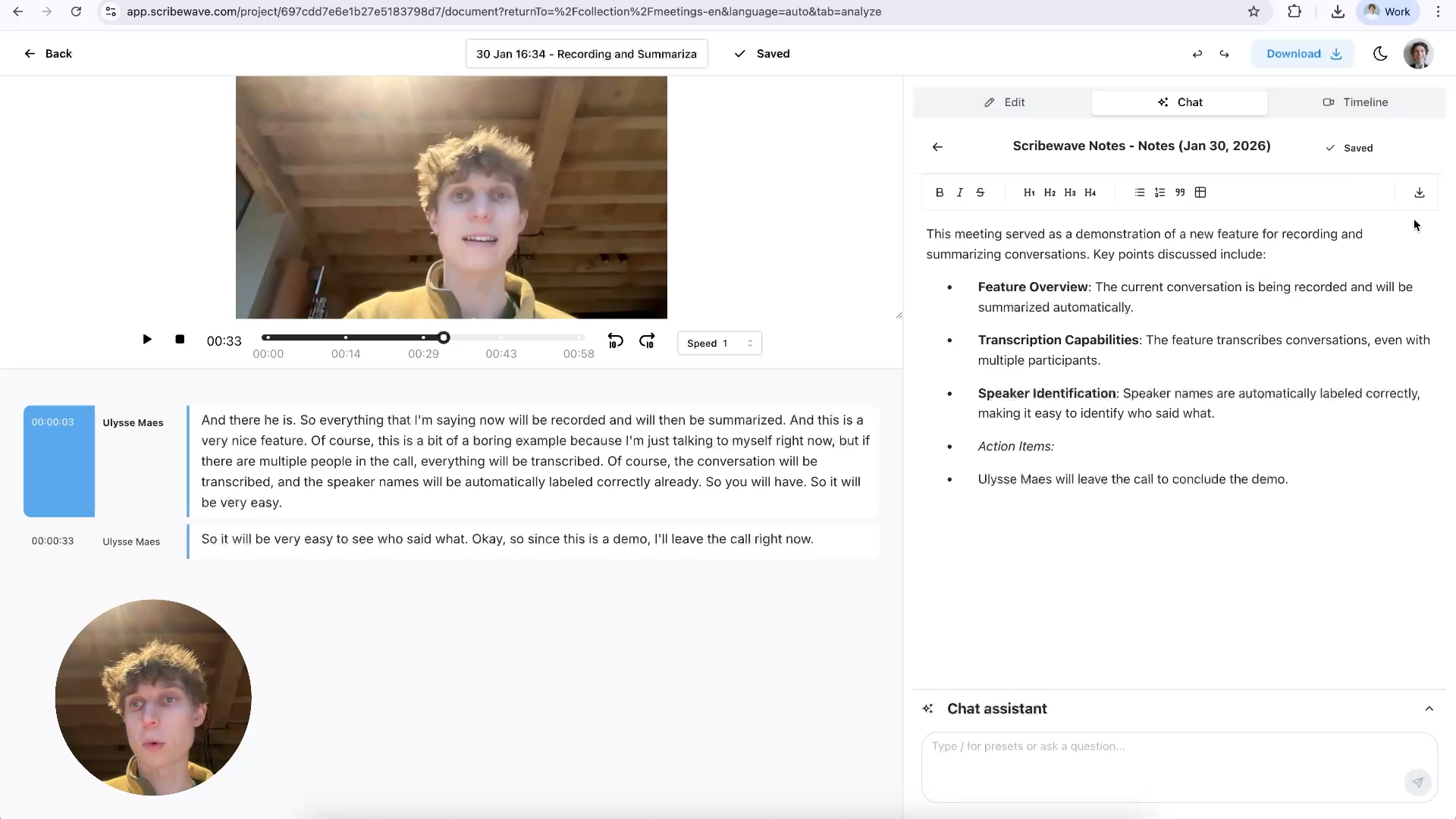 Step 5: Review transcript and summary
Step 6: Customize meeting instructions
In collection settings, add custom meeting instructions (for example: done, in progress, and to do), enable summary emails, and save any custom vocabulary.
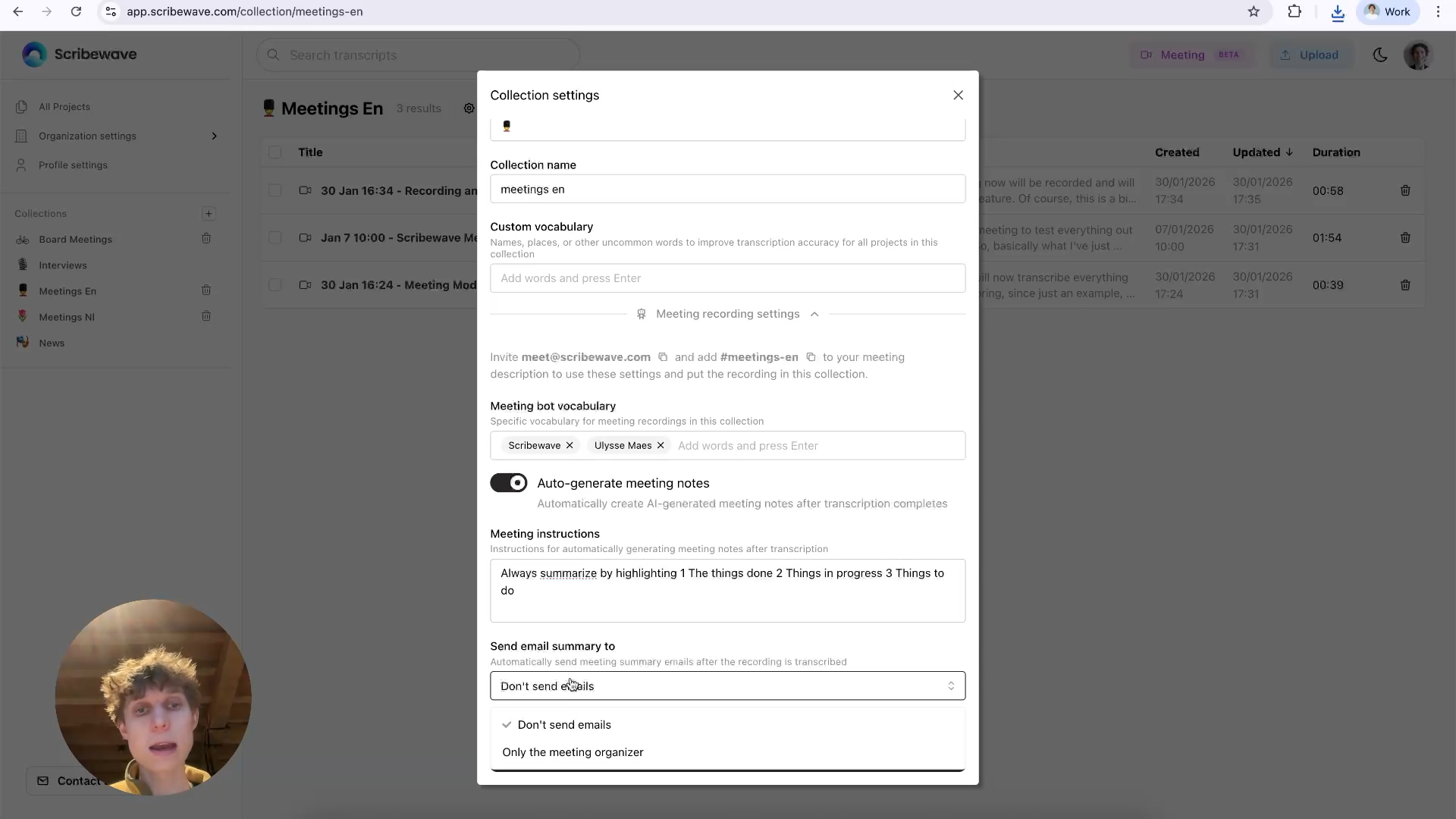 Step 6: Customize meeting instructions
Step 7: Schedule meetings with the bot
Create a calendar event and invite meet@scribewave.com. The notetaker accepts the invite and joins automatically when the meeting starts.
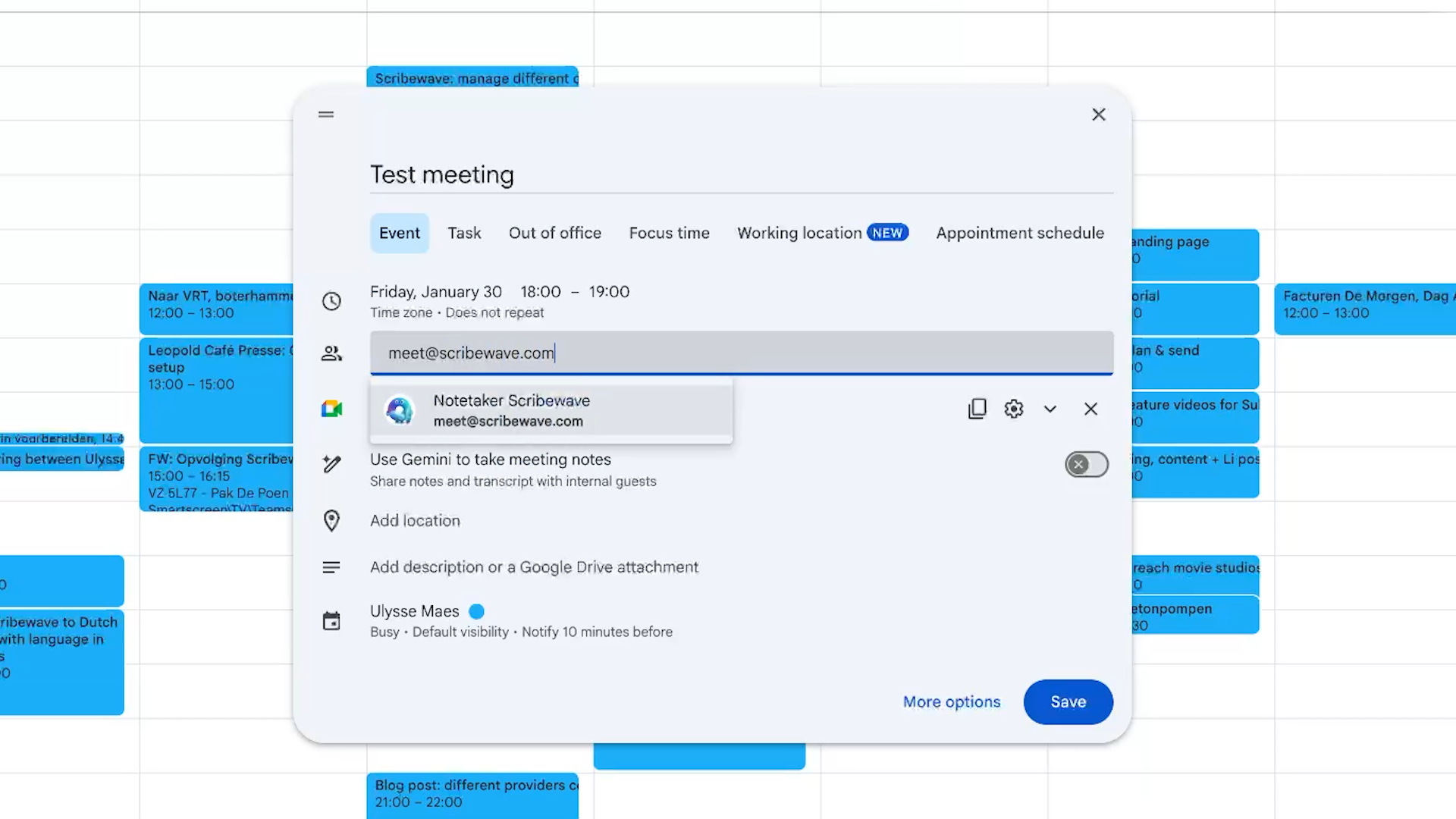 Step 7: Schedule meetings with the bot
Step 8: Use the AI assistant for follow-ups
After the meeting, search the recording or ask the AI assistant about specific moments to stay on top of action items.
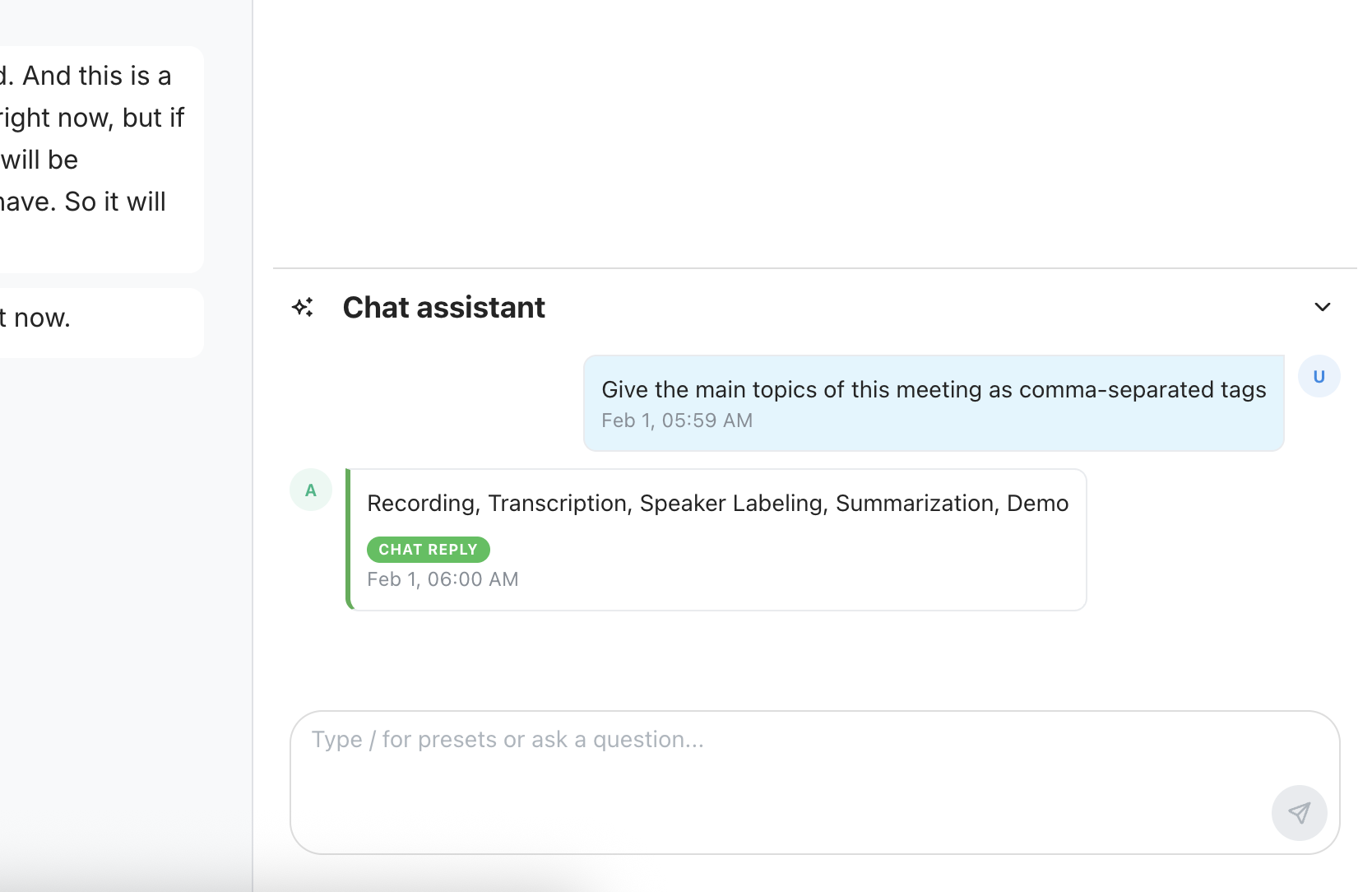 Step 8: Use the AI assistant for follow-ups
Step 9: Translate the meeting transcript
You can also translate the meeting transcript for multilingual teams. Learn how to translate transcripts.
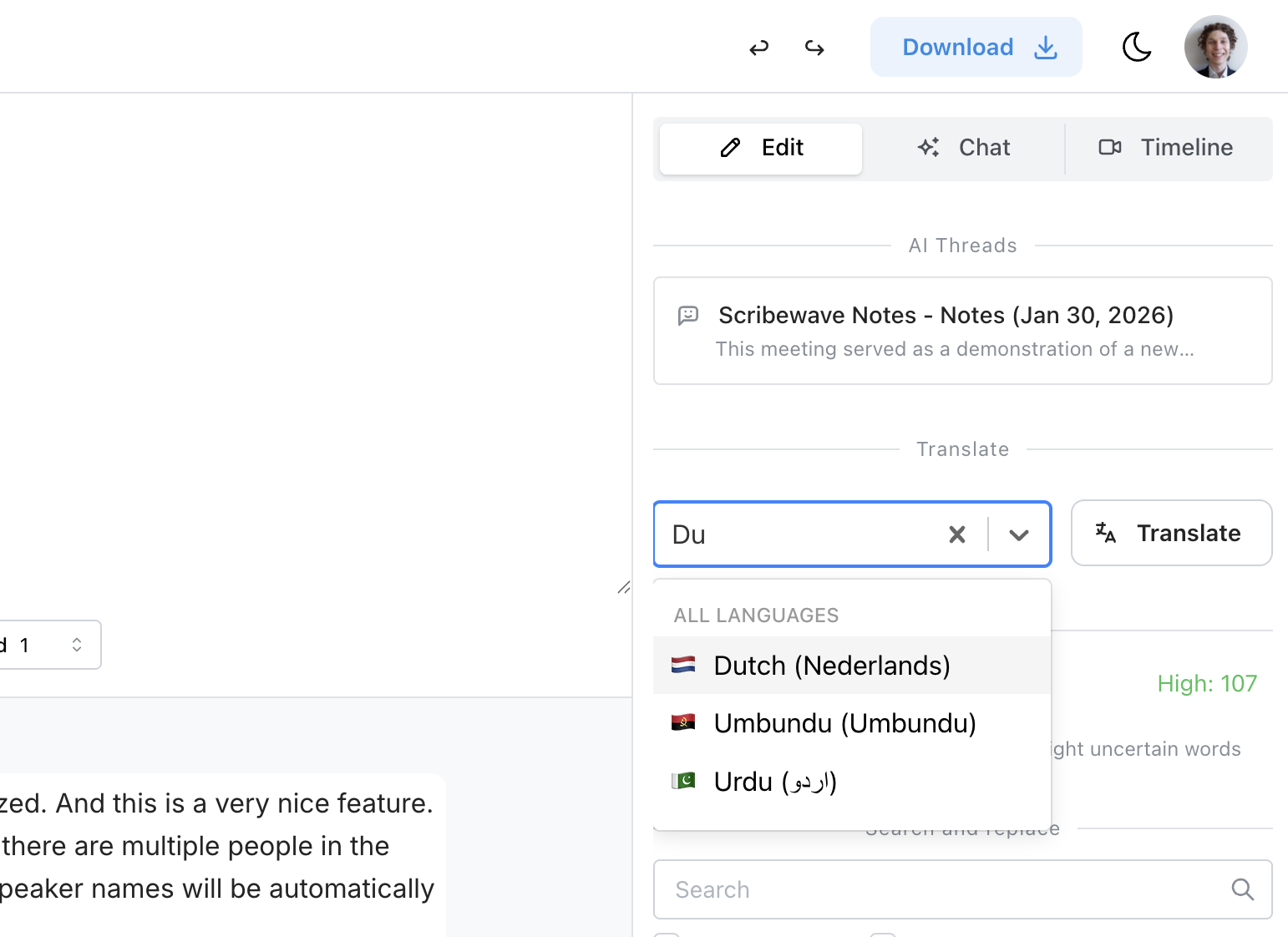 Step 9: Translate the meeting transcript