How to translate your transcripts into 99 languages
Step 1: Upload your file
Visit scribewave.com and upload your file directly from your computer. Alternatively, use our WhatsApp bot to send voice notes and recordings directly from your phone for even faster processing.
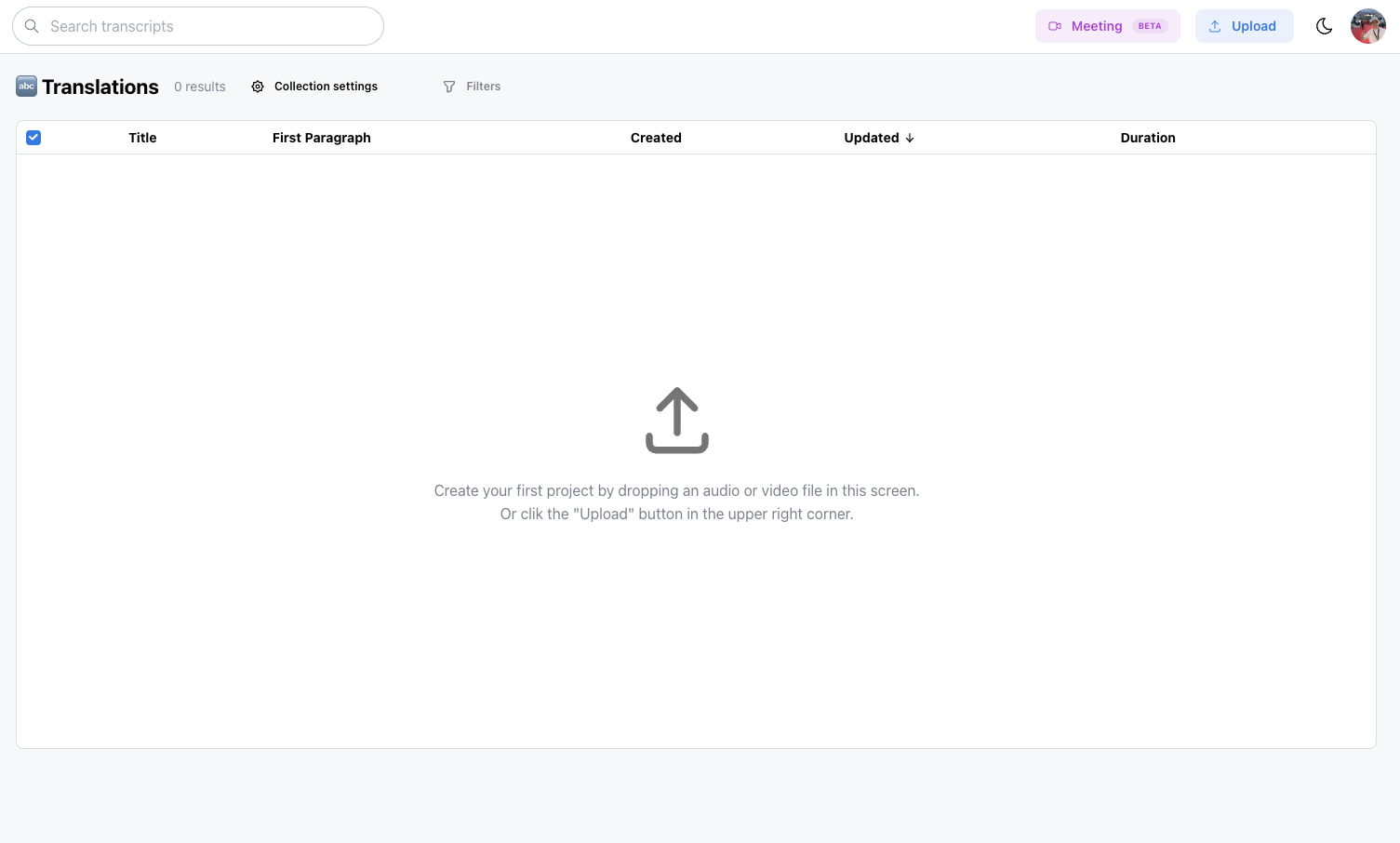 Step 1: Upload your file
Step 2: Set up WhatsApp (optional)
To use the WhatsApp bot, go to your profile settings, enter your phone number, and save. You'll receive a message from the Scribewave bot, after which you can simply send files to it whenever you need a transcription.
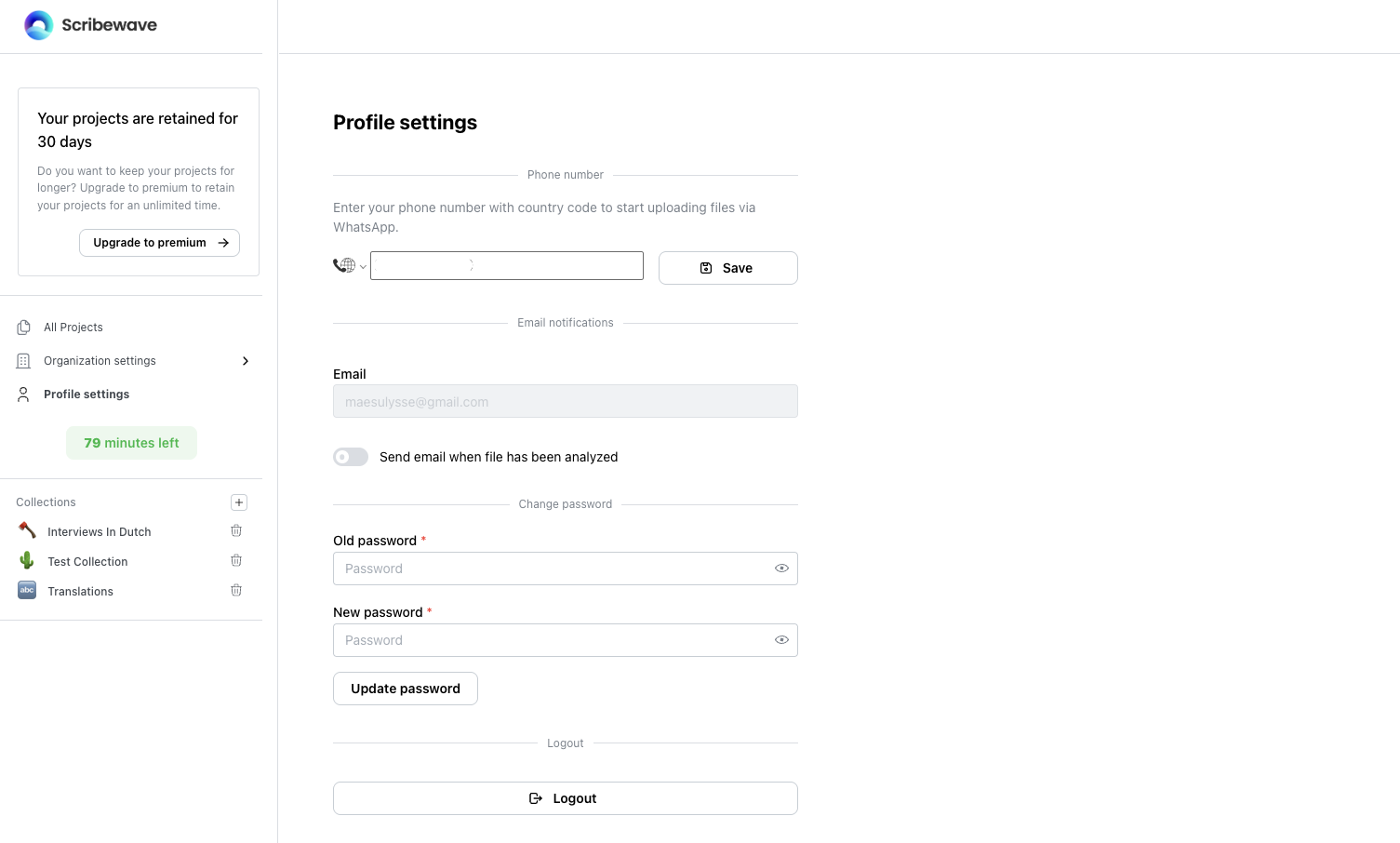 Step 2: Set up WhatsApp (optional)
Step 3: Receive and review your transcript
Your file will be transcribed in seconds. Once ready, you can check the text, make edits, and click on any word to jump to that specific moment in the audio recording.
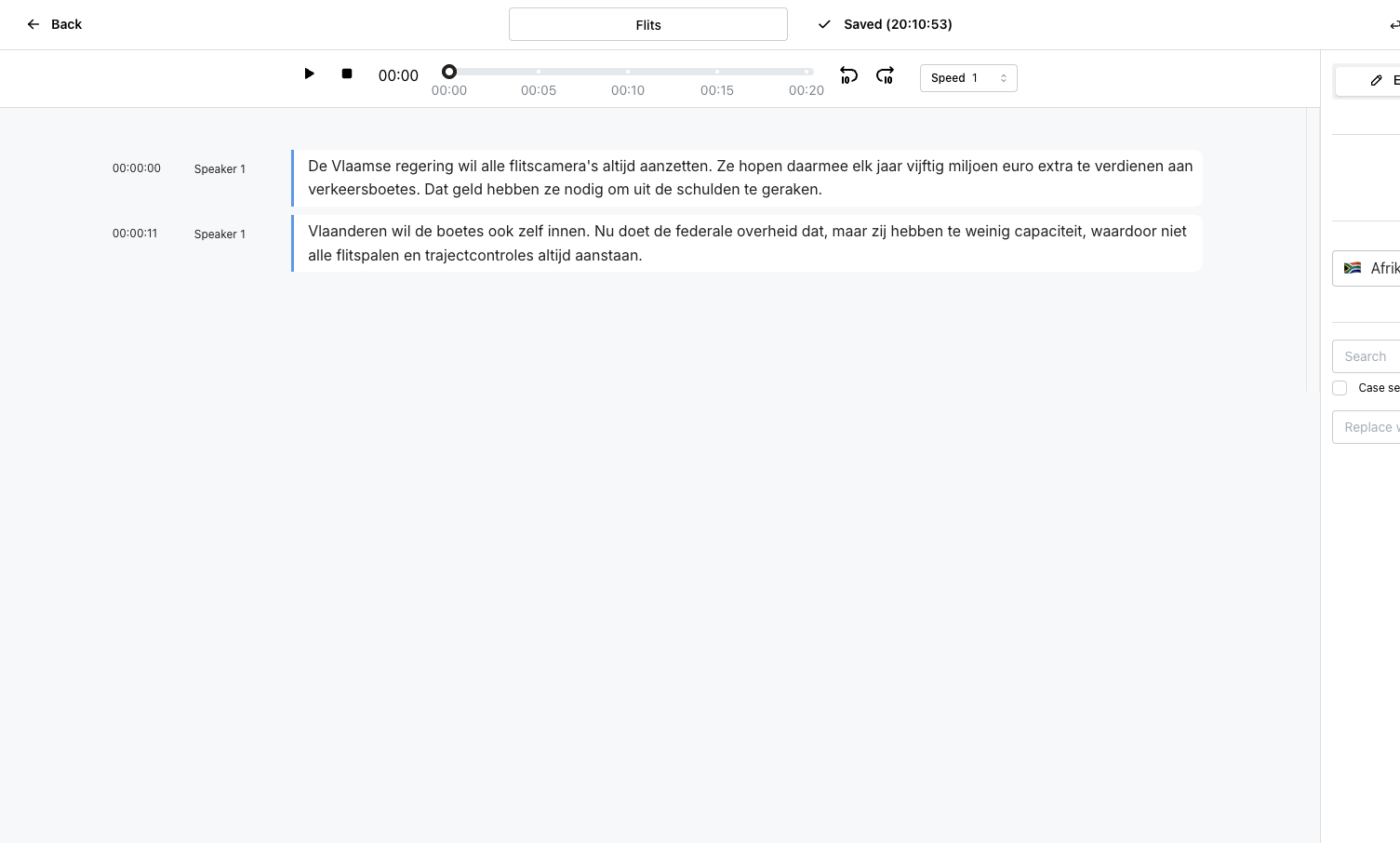 Step 3: Receive and review your transcript
Step 4: Choose a translation language
In the translation menu, select your target language—such as Dutch, French, or German—and click 'Translate'. Your translated transcript will be ready almost instantly.
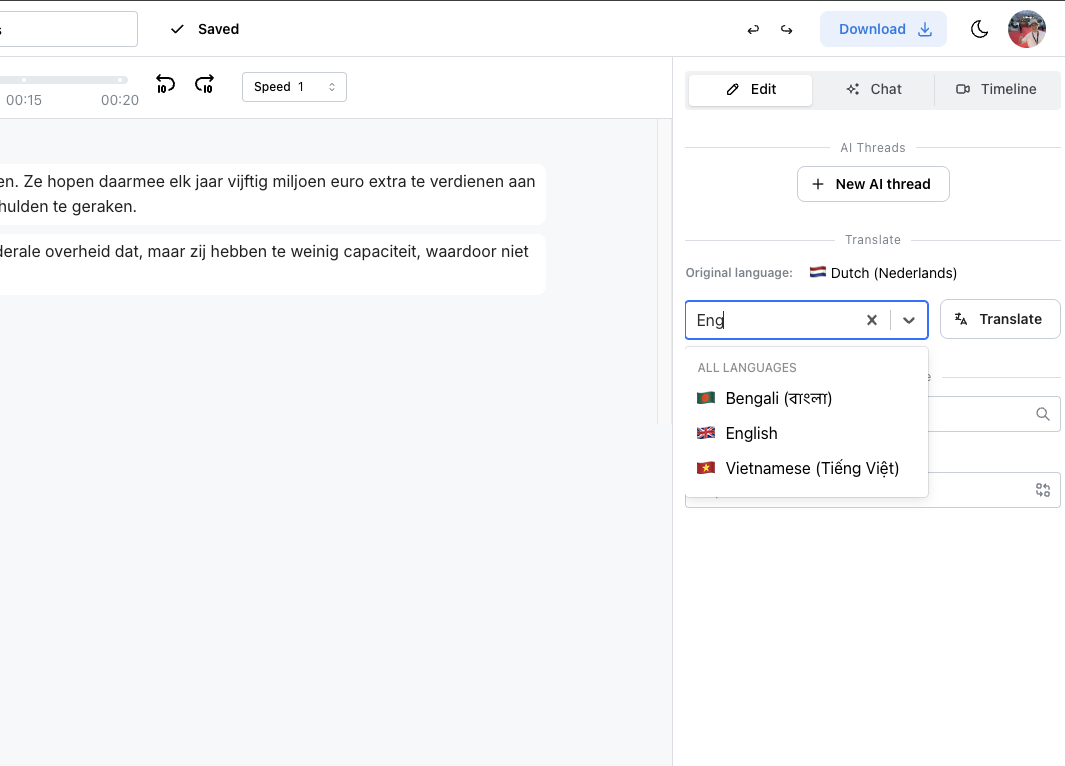 Step 4: Choose a translation language
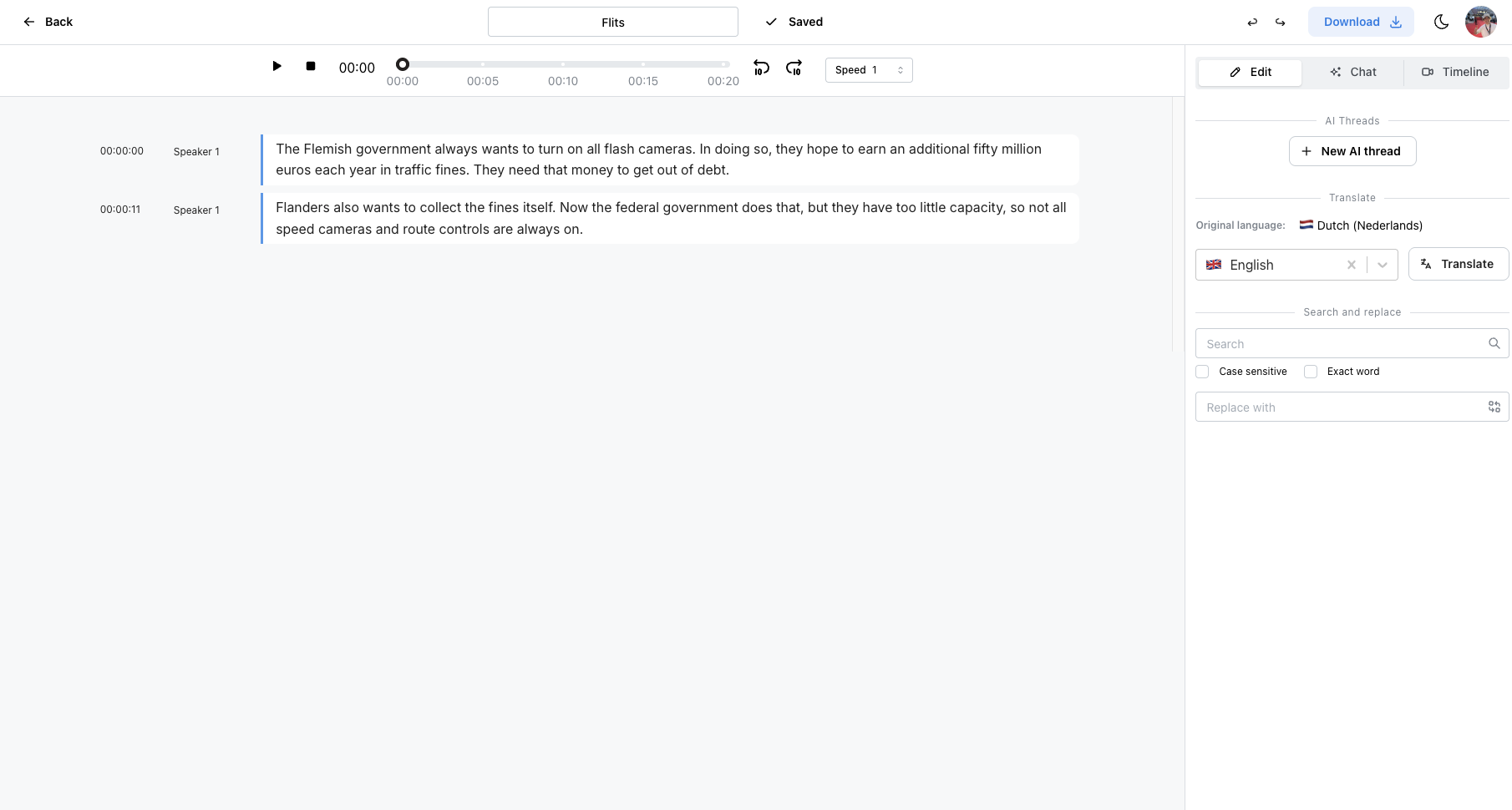
Step 5: Maintain audio synchronization
Even after translation, all timing information is preserved. You can click on any translated word, and the audio will jump to the corresponding timestamp, keeping everything in perfect sync.
 Step 5: Maintain audio synchronization
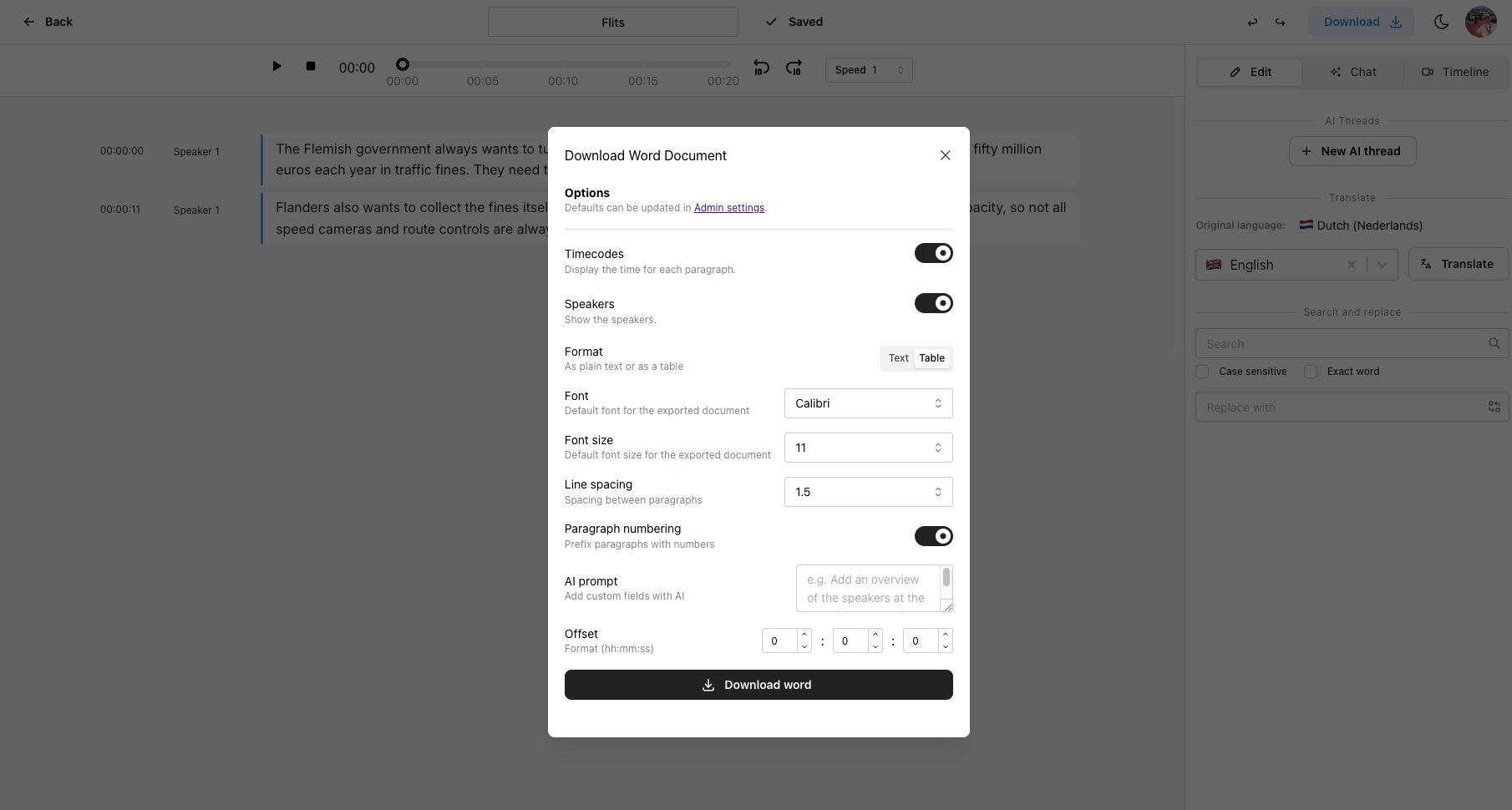
Step 6: Export your results
Download your translated transcript in your preferred format, such as a Word document with timestamps or a subtitle file, making it easy to share or use in other applications.
 Step 6: Export your results
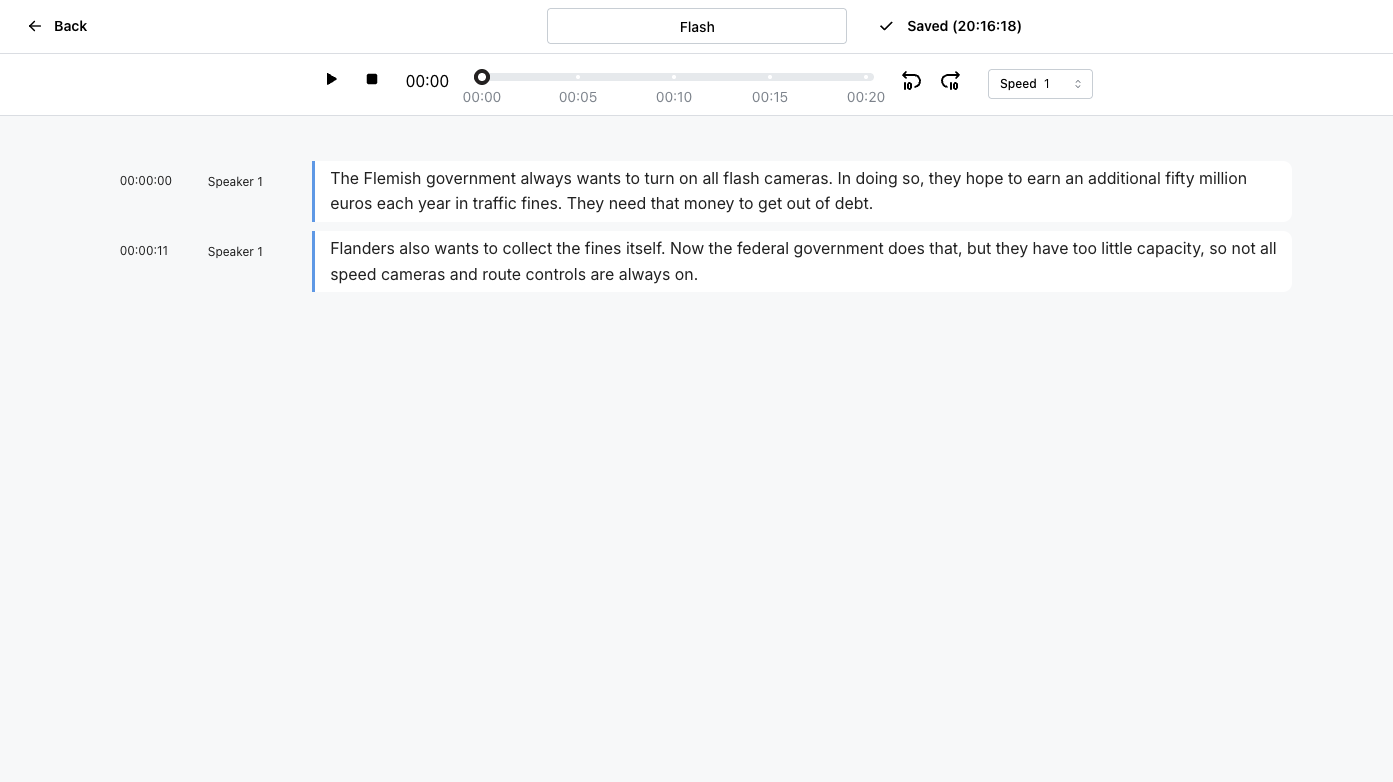
Step 7: Keep paragraphs organized
If you create paragraphs in your original transcript, the translation will follow the same structure. This makes it a powerful tool for translating complex meetings and interviews without losing context.
 Step 7: Keep paragraphs organized