Share collections with your team
Collections let you group related projects together. By sharing a collection, every project inside it becomes accessible to the people you invite. This guide walks you through opening collection settings, sharing the collection, and choosing the right permission level for each member.
Step 1: Open collection settings
Navigate to the collection you want to share and click the "Collection settings" button at the top of the page.
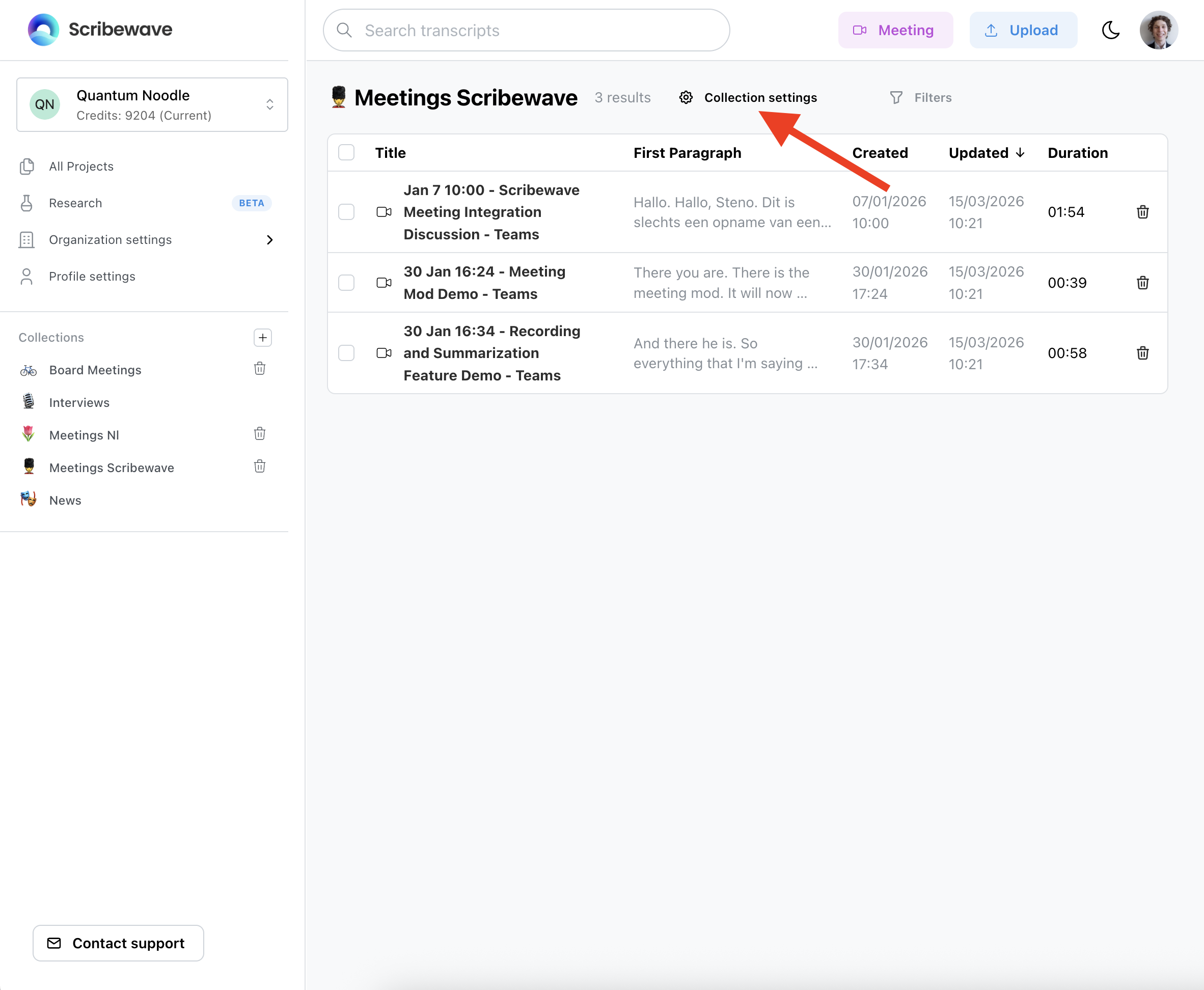 Step 1: Open collection settings
Step 2: Click Share collection
In the collection settings dialog, scroll down and click "Share collection" to expand the sharing options.
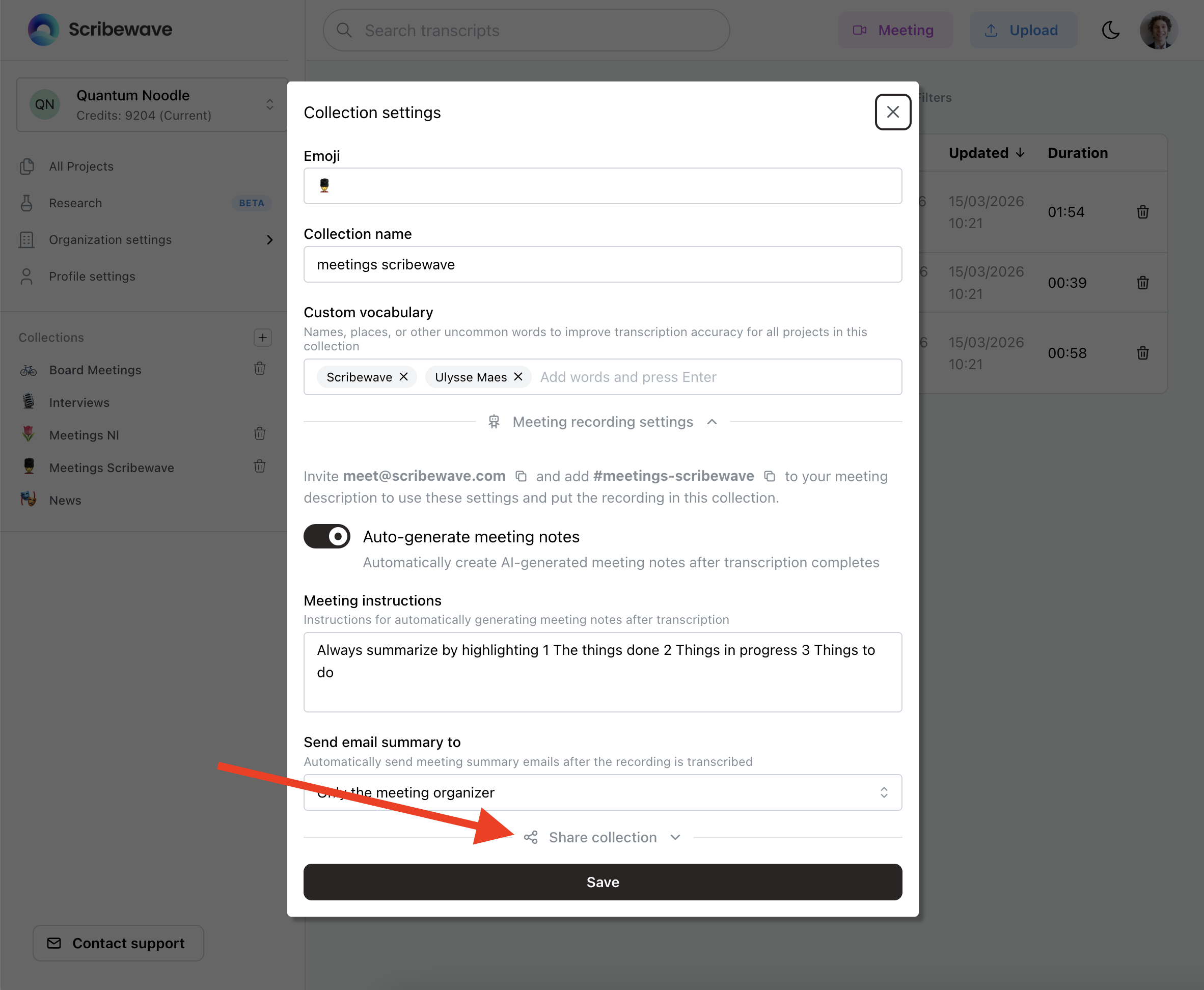 Step 2: Click Share collection
Step 3: Search and add members
Under "Add people", search for organization members by name or email and select them to add to the collection.
 Step 3: Search and add members
Step 4: Set permissions and save
For each member you add, choose either "View" (read-only) or "Edit" (full access) permissions. All projects in the collection are shared with the members you add. To revoke access to a specific project, move it to a collection the user is not a member of. Click "Save" to apply.
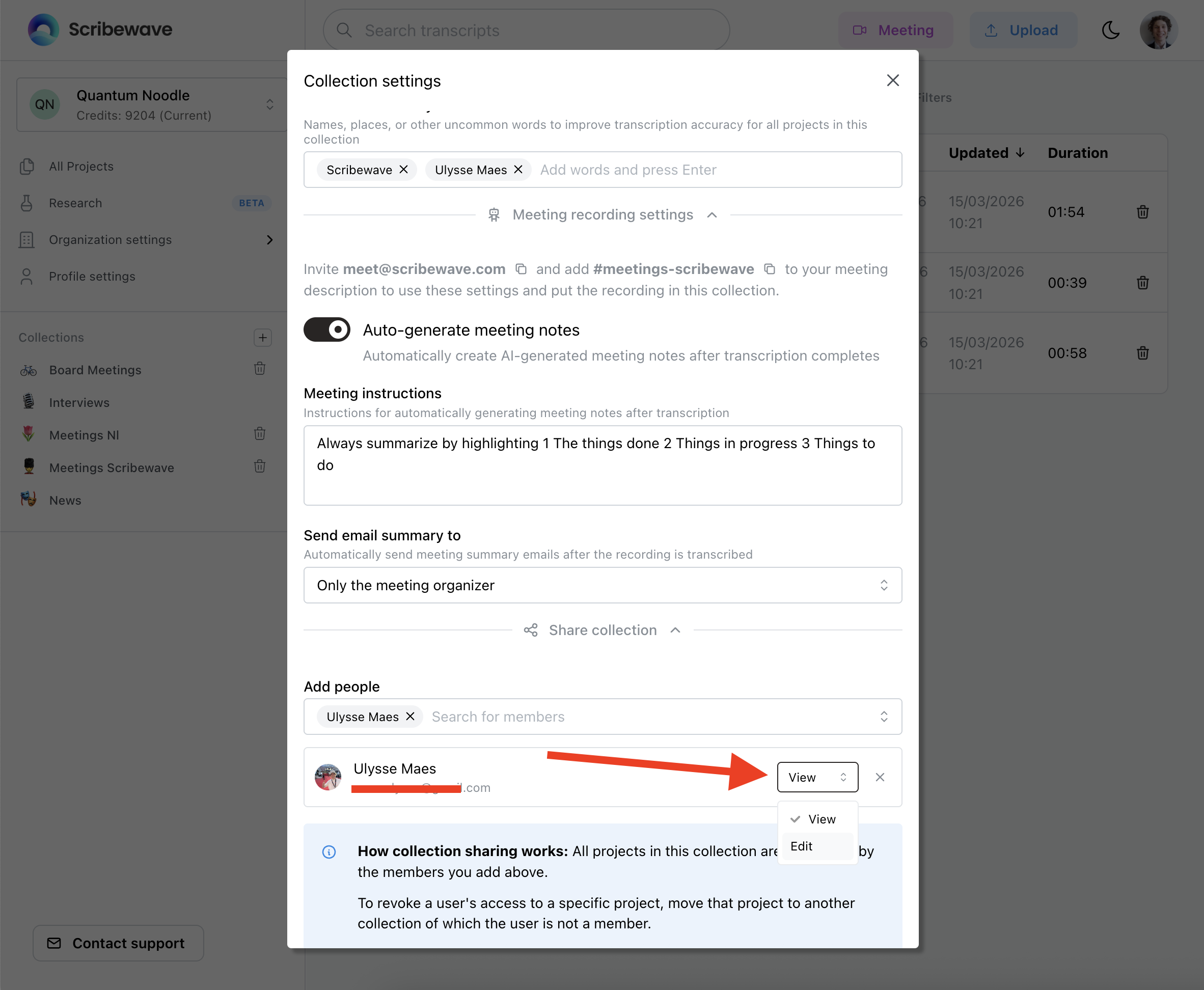 Step 4: Set permissions and save